
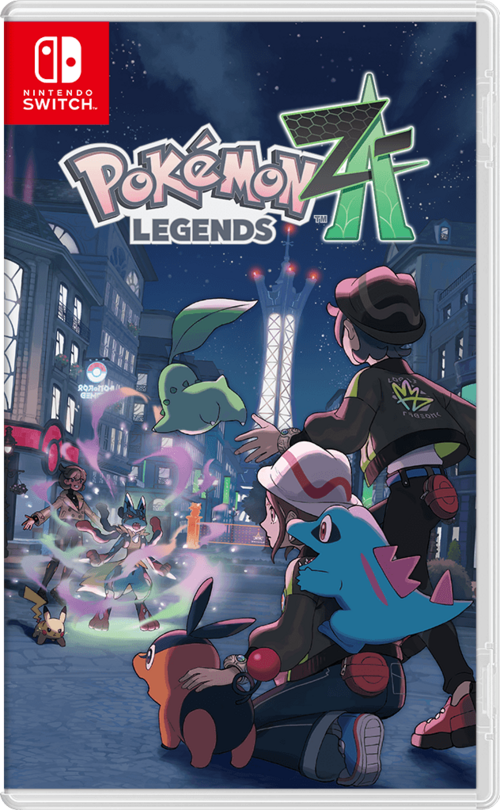
Pokemon Legends: Z-A
How to Transfer Pokemon from Pokemon Legends: Z-A to Pokemon HOME
To move Pokémon from Pokémon Legends: Z-A into Pokémon HOME, make sure you have Pokémon HOME installed on your Nintendo Switch and fully updated. A Premium Plan isn’t required for this process — the free version works fine, though it comes with limited storage space.
Launch Pokémon HOME on your Switch and choose “Pokémon” from the main menu. Select the user profile connected to your Legends: Z-A save data. When prompted to pick a game, choose Pokémon Legends: Z-A. You’ll then see your in-game storage boxes from Legends: Z-A on one side, with your Pokémon HOME boxes displayed alongside them.
From here, you can transfer Pokémon by dragging them from your Legends: Z-A boxes into your HOME boxes. Only Pokémon stored in your in-game boxes will be visible — any Pokémon currently in your active party or any Eggs won’t show up, so it’s worth organizing your boxes beforehand. Once you’ve finished moving everything you want, press the “+” button to save and confirm the transfer.
After transferring, your Pokémon will be stored safely in Pokémon HOME and can be moved into other compatible titles, provided they exist in that game’s Pokédex. You can also send eligible Pokémon back into Legends: Z-A if needed. While you can view and manage your collection on both the Switch and mobile versions of Pokémon HOME, all transfers between HOME and Legends: Z-A must be carried out on the Nintendo Switch version.